The Thread Editor
The management of threads is a challenge for every embroiderer. And every embroiderer handles this differently. Some people are very organized and will colorize designs with only colors they actually own. Others resist changing threads at all. And of course commercial embroiderers ignore colors onscreen entirely and just run whatever colors the job calls for.
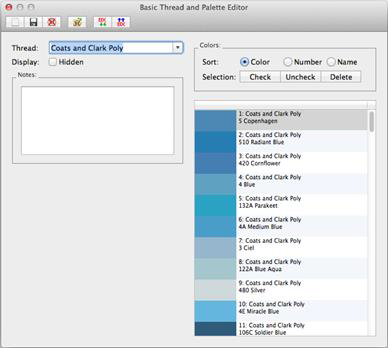
The Thread / Palette Editor provides a place for you to manage which threads you own, create smaller palettes for specific projects, and even share those palettes with others.
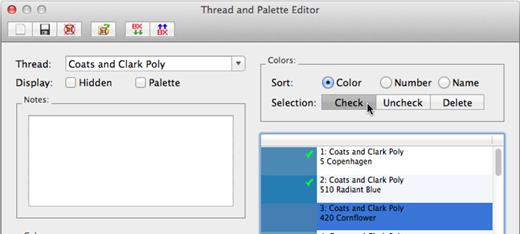
When choosing colors in the main program window, you are given the choice of picking colors from thread lines or palettes. The reason for this is to allow quick access to a current set of project colors, rather than taking the time to scroll through a long list of threads and their complete color lists. Often, an embroiderer is working with a set of colors repeatedly and selecting through a long list when you, “Just want that blue I’m using,” would be tedious. For this reason, there is a checkbox that is used to determine whether the color list is shown as a thread or a palette.
Note: For the purposes of discussion, the term “thread line” and “palette” are considered synonymous, except when discussing the above checkbox.
The program ships with data for many thread lines, including some that may not be available to you in your area. If you would prefer not to have those threads show up in your list (while changing colors in a design), you can check the box labeled, “Do not display.” This does not hide the thread in the Thread Editor, only in the Thread and Color properties when working with designs and objects.
The ‘Notes’ box can be used to type in any useful information about a particular palette. For instance, you might create a palette of colors for a particular job or project and you can enter information such as, “The blue design matches the print on the front of the shirt.”
Each thread brand or palette is stored as a file on your computer. As such, the toolbar has options for you to create new thread palettes, save a palette that you’re working on, and even delete a palette that’s no longer needed. These actions are performed by the left three buttons on the toolbar.
Merging colors from different thread lines / palettes.
The next button, ‘Merge’ will open a thread window that lets you select one or multiple colors to be merged into the current palette. Also, there is a Delete button, which removes any selected threads from the current palette.
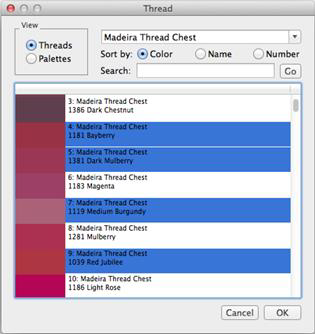
Multiple selections can be made using the Cmd and Shift keys while selecting with the mouse.
When merging colors from another thread or palette, the ‘brand’ for those colors will take the name of the current thread. This is one difference between a thread and a palette. If you merge colors into a palette (the palette radio button is highlighted) then the colors will keep their original thread names.
Sharing Palettes
If you would like to share or import a palette, use the two buttons on the right of the toolbar. Sharing a palette is great when you are making a project that others will make too.
Thread Inventory
You can mark threads that you have in your personal inventory using the ‘Check’ and ‘Uncheck’ buttons: