The Stitch Files Window
The Merge Files Window is used to merge existing embroidery files into the current Design Page.
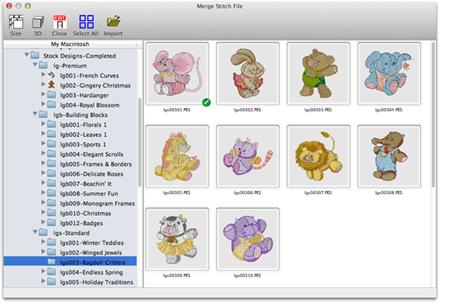
The Browse view on the left side is called a ‘Tree’ control, and it has a ‘Root’ level, which is left-most and ‘branches’ which you can open and close using the ‘+’ and ‘-’. You will also see individual .ZIP files as branches, so you can import designs directly from within those as well.
On the toolbar, there are controls for thumbnail size and 3D display. The ‘Close’ button (icon or small red button in upper left corner of the window) will close the window without importing anything.
The ‘Select All’ button selects all the designs in the view on the right.
To bring designs in, click ‘Import’.
As with most similar views on Mac, the thumbnail view on the right allows single design selection, by clicking on an item. But also you can select a range of designs by first selecting a design then holding the shift key down and clicking another design. Additionally, you can use the command key to click on different designs that are not next to each other, and that will select those too. This is called a disjointed selection.
On Mac, you can also drag-select. You won’t see the typical marquis around the selection; instead, you’ll see check marks on the selected designs.
You can also double-click on a design to import it and close the window.