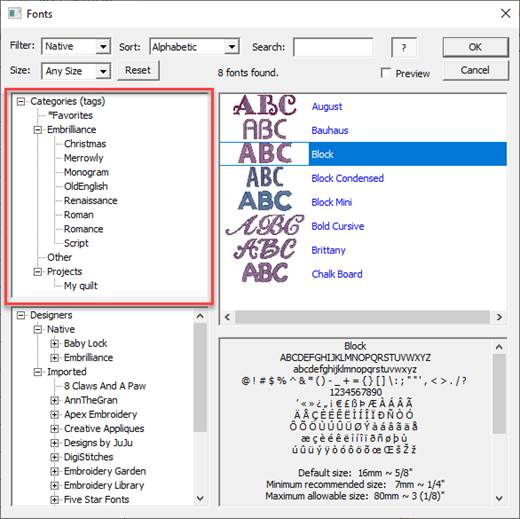
Category View
The Categories view contians a tree, or heirarchial list, of words that are used to find fonts easily. These categories are merely words, similar to tags you may be familiar with on the internet. The categories are defined by you. We’ve started the first for you, and called it, “Favorites.” It has an asterisk next to it, which should keep it at the top of the list, which is alphabetically sorted.
Right-click on a category to add a sub-category under it. Right-click the top word, “Categories (tags)” to make a new root-category instead of a sub-category. There is not real limit to the number of nested levels your categories can be made, however, for practicality we suggest no more than three or four.
To delete a category, right-click on it and that option will appear.
To rename a category, click on the label text. You may have to wait a second and click again, and the OS will let you edit the label. Once you are finished changing the text, hit Enter on your keyboard.
Categories cannot be moved around. If you find you made a mistake, you can make a new category in the correct place, select the old category which shows the font list for it, then categorize those into the new one. Once they are there, you can delete the old category.
Categorize fonts by selecting fonts in the Font List, one or more, and then drag those selected fonts to a category. You can then see that they were tagged in that category by selecting the category. You’ll also see the font count change; in case you’re looking at a lot of fonts.
If you want to edit the categories that a font or fonts belong to, select them in the Font List and right-click. You’ll see the option to do so.
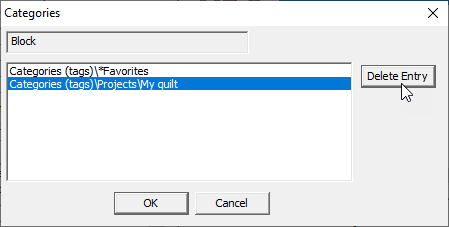
Edit Category Entries
In this window, select the lines, one at a time and click Delete Entry. When done, close the window. There is no Undo, so if you make a mistake, simply re-categorize the font(s).