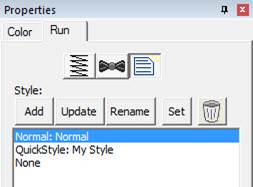
The Styles Property Window
Styles allow for repeated use of properties on a given type of object. There is a style button on the top, right of each object property page. When an object has been assigned a style, that style will be highlighted in the style list, shown on the Style properties for the object. If an object was assigned a QuickStyle, but has been modified, it will be given an asterisk at the end of the style name.
The Styles Property Window
Once you change the property of an object you just made, the program takes the properties of that object and uses them for the next object you make of the same type. This is the “Current Style.” For example, if you create a run and set it to a Bean stitch, the next run you create will start out as a Bean also. Although it may not be a named style, the current properties are important, as they are used when creating an object.
Updating the ‘Current’ Style
The ‘Set’ button will use all of the properties as shown to set the ‘Current’ style for new object creation; when you create a new object of that same type (run, column, etc.) it will be created with the same settings as the first object now selected.
Alternately, if you have an object whose style is “None” and you click ‘Update’ it will likewise set the ‘Current’ digitizer settings to match that object.
Normal Style
When you begin creating objects having just run the program, the default styles are being used, called “Normal.” These have been tested to be reasonable for all-around conditions, but naturally properties exist for a myriad of reasons.
To remove the QuickStyle from an object, click “None.” This will have no effect on the properties of the object; it just removes the style setting.
When you have an object that has its properties set a certain way, you can save those properties as a QuickStyle. Using QuickStyles allows you to remember a set of property settings that sewed perfectly for a project, or simply to match prior objects you’ve created.
Adding a QuickStyle
When you create a style based on a selected object, you can name it. This is called a QuickStyle, and the style itself resides with the design page being used, and on your computer for future use. To do this, click the ‘Add’ button.
If you load a document with a style that is not on your system, it will be referred to as a “Page Style”. If you would like to add this style to your collection for use later, you can click the ‘Add’ button.
Renaming a QuickStyle
If you wish, you can rename the style with the ‘Rename’ button. Any object that uses this style will show the new name in use when the style page is shown.
Updating a QuickStyle
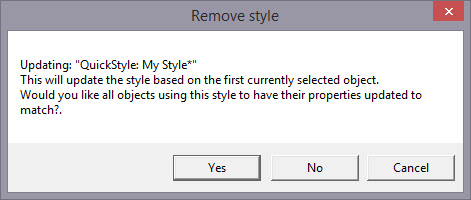
When you have modified a QuickStyle-stylized object, and you want to update the QuickStyle to match the current object properties, use the ‘Update’ button. This means that other objects with the same style set will not match. Since the main reason for styles is to have all the objects working the same, there is an option presented to update all the other objects that use the same QuickStyle to have their properties match the current one.
Removing a QuickStyle
Using the ‘Remove’ button, with the trash can icon on it, you will remove the QuickStyle from the page, and from your system. Realize in doing so that other objects on the page, or indeed other files you have created, may have used that QuickStyle.
As QuickStyles are stored with the page as well, the style will become a “Page Style” for other documents when you load them, if they had that QuickStyle applied.
When you remove a QuickStyle, it erases it completely without affecting the properties themselves. Objects that have had their QuickStyle removed will not lose their property settings, but will naturally have a style setting of “None.”