Flatten
 When
importing vector art from outside sources, it will be unlikely that the shapes
are truly ready for use in embroidery. Often times in the creation of vector art
it is expedient for the artist to layer one shape on top of another. In graphic
arts, only the final visible items will have any impact on the result, so any
shape or any part of a is shape may be hidden without consequence. In
embroidery, those shapes, as they exist, will be used. This means there will be
a tremendous amount of overlap. The Flatten command clips the shapes against
each other so that only one top layer remains. Remember that registration issues
will occur when you sew these objects, so you will likely need to do some
editing.
When
importing vector art from outside sources, it will be unlikely that the shapes
are truly ready for use in embroidery. Often times in the creation of vector art
it is expedient for the artist to layer one shape on top of another. In graphic
arts, only the final visible items will have any impact on the result, so any
shape or any part of a is shape may be hidden without consequence. In
embroidery, those shapes, as they exist, will be used. This means there will be
a tremendous amount of overlap. The Flatten command clips the shapes against
each other so that only one top layer remains. Remember that registration issues
will occur when you sew these objects, so you will likely need to do some
editing.

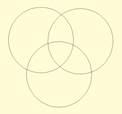
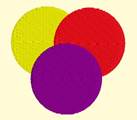
On the left is a graphic created and saved as an SVG. The
middle is the import of the SVG – notice the artist used three circles to create
the design, which seems reasonable enough. If we make them all fills (and set
colors, if needed) as we have on the right, it looks okay…
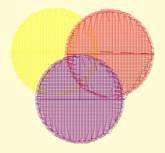
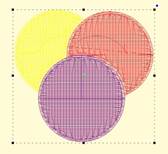
…But there is a problem. The design on the left is shown with
3D off so you can easily see the overlapping stitches. Once we use Flatten, as
in the design on the right, we are closer to having something that will sew
without damaging our needle or machine.
Inflating / Deflating shapes
 Sometimes
you need a shape to increase or decrease in size, but be exactly the same
distance around all the lines of the original. This means the new shape will
have to change. A classic example of this is echo quilting, where, as the lines
of stitching echo out, the curves become less tight, and fewer details are
visible.
Sometimes
you need a shape to increase or decrease in size, but be exactly the same
distance around all the lines of the original. This means the new shape will
have to change. A classic example of this is echo quilting, where, as the lines
of stitching echo out, the curves become less tight, and fewer details are
visible.
Clicking the Inflate button on the Tool Pane displays the
Inflate dialog, which allows you to inflate selected objects and their holes as
needed.
When inflating or deflating, the object selected will change.
Thus, if you wish to have the original shape retained on the page (for some
other part of the design) you should copy and paste it before inflating. See the
next section, ‘Automatic Outlining’ for an example use of inflation.
 Automatic
outlining will create a shape that surrounds any stitches on the design page.
This is useful when creating stitches that will add to an existing embroidery
design that has been merged onto the page.
Automatic
outlining will create a shape that surrounds any stitches on the design page.
This is useful when creating stitches that will add to an existing embroidery
design that has been merged onto the page.
Automatic outlining can also be used to create an object hole.
The purpose for this is for quilting designs. You can merge a design or create
an interior design with objects, then make a new outline in some larger shape,
for instance a quilt block, or your hoop. By adding a hole to that shape, in the
form of the current stitches on the page, you can create a stipple, or an echo
perhaps, that will surround those stitches and fill the block.
The automatic outlining can be combined with Inflation to
allow room around the stitches, for quilting or other purposes. For example,
there is a feature elsewhere in the platform that automatically creates
knockdown stitches for sewing on terry by first creating an automatic outline,
then inflating it slightly, and adding a light fill.
Here’s a quick illustration in use, starting with a basic
monogram:
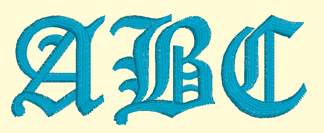
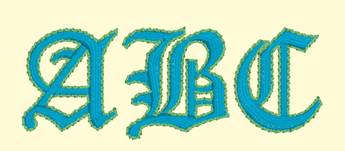
Now we will automatically outline it and set those new
objects to a backstitch, made green.
Let’s try a few more steps for
fun:
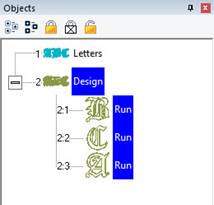
Copy the outlines that were created by
the Automatic Outline tool:
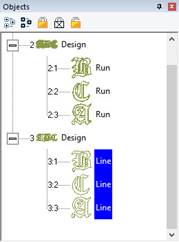
So, you should see this.
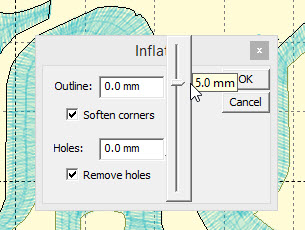
Use the Inflate button  to create echoed outlines of the
letters. Note the ‘Remove holes’ option is turned on. We are using a 5mm
inflation.
to create echoed outlines of the
letters. Note the ‘Remove holes’ option is turned on. We are using a 5mm
inflation.
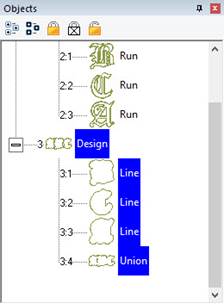
Add a Union. Next, delete the
individual ‘Line’ objects, as we won’t need them anymore.
Select the Union and use the menu
‘Create->outline->delete holes.’
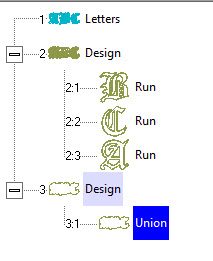
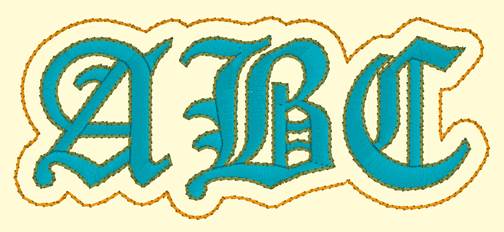
Now add a run to the Union, change
style, color, etc.
Publishing
When you want to create your own art and use them within other
designs, as motifs or embossing patterns, you can ‘Publish’ them in several
ways, including the creation of a .BX install-file which lets you share your
work with others.
Motifs are used in Motif Runs and Motif Fills. The motif
itself is a design, and can contain any number of Manual, Run and Satin objects,
although usually a motif is a singular Manual stitch object. Naturally, a motif
cannot contain another motif.
Motifs run left-to-right, by convention in the system. They do
get reversed when needed during a fill, but we start with a normal orientation.
A motif’s first point and its last point should line up – or rather, they will
when used so you might want to consider that as you draw one.
Motifs use the vertical position of the initial and final
points as a baseline, like a letter would. The baseline is how much above and
below the line the motif will sit.
Manual points are mostly used in motifs, especially since Runs
will calculate, and the points where a needle will land are unpredictable when
the user is in control of the size. This is doubly true when going around tight
curves, where small changes in size will very much affect the position of the
stitches.
You can use satins to make a motif, and the satin will
generate for the size used in the Motif run or Motif fill. It is generally not
needed to use any underlay in the satin, although you can.
Normal motifs are fairly small, typically 2-4mm, so as to be
used in a Motif Fill with a reasonable number visible, but they can be large, if
warranted. You may want to make a motif that represents a particular client
logo, and embed that in the background of a fill in a larger design.
When storing motifs, you will be saving them on your system
for use in the future, but when they are used within an object, they are also
stored in that object. This means that if you edit the motif, the object won’t
be updated – you’ll need to remove that motif from the object that’s using it,
and re-add the new version.
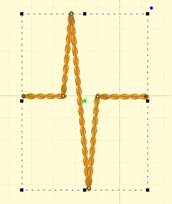
Let’s create a motif by drawing a shape and setting its type
to Manual. Note the first and last points are on the baseline.
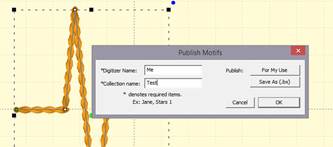
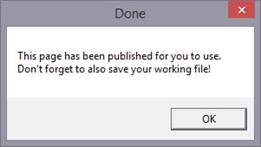
Now we can publish it (along with any other designs on the
page). Click ‘For My Use’:
Now, let’s start a new Motif object. Click Add on the Motif
property and select the motif:
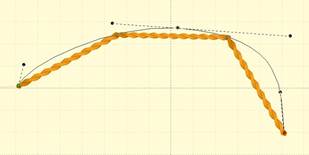
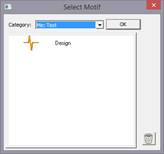
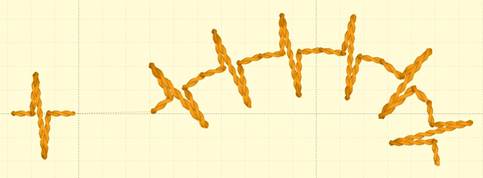
The motif, along with the result:
Creating Emboss Patterns
Embossing patterns can be either open or closed shapes, but
they will be used differently depending which they are. Open shapes are used as
repeating carving lines in a normal fill.
Closed shapes will have the fill stitches that lie internal to
the shape removed, unless that makes for an extra-long stitch. The effect of
closed shapes in a fill is that of satin areas within the fill, and those
provide dramatic relief from the fill stitching; almost a trapunto effect.
In order to ‘see’ more of the embossed pattern, keep its size
within the realm of your stitch length or smaller – typically 3.0mm - 5.5mm.
Embossing patterns are done with Line objects, as stitches
have no effect in the design. Also, you do not have to worry about transits,
overlap, and color or anything but the shape that is your desired result.
Emboss patterns are shapes that intersect the existing
stitches thus causing a needle-penetration. When the shape is parallel to the
stitches, it may not intersect; hence you can have sides of your shape that do
not create stitches. This is usually overcome by adjusting the inclination angle
a little bit, or rotating the emboss pattern, so that more intersections
occur.
Keep in mind what your emboss pattern will look where its
pattern will set next to a copy of itself; the design’s right edge shape will
interact with its left edge.
When storing emboss patterns, you will be saving them on your
system for use in the future, but when they are used within an object, they are
also stored in that object. This means that if you edit the pattern, the object
won’t be updated – you’ll need to remove that pattern from the object that’s
using it, and re-add the new version.
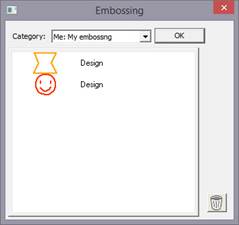
Let’s go through the process. Here we have drawn some line art
in two designs.
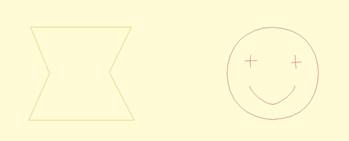
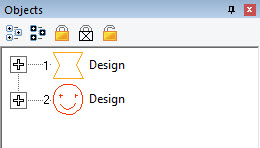
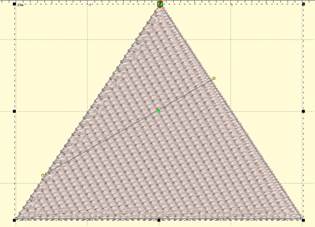
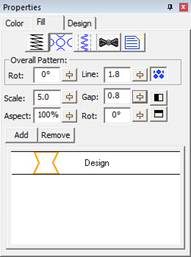
Next, we have a shape with a fill, and we’ll add an
embossing:
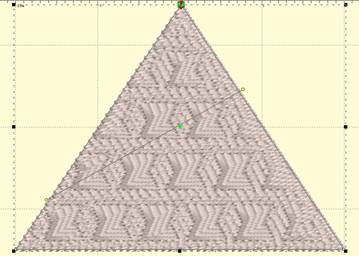
Notice the angle of inclination to cause more intersections in
the result:
Artwork drawn in the program can be exported as a vector file
in .svg format and for popular cutting machines. Use the menu ‘File->Export’
to save the artwork. This is not the same as the applique functions to save
cut-files (located on the Applique tab of the Color Window). Those outlines are
processed to directly cut an applique. The files saved when Exporting are the
objects as-drawn.