Transform Controls
Sizing and positioning of design elements can also be accomplished using the Size and Position controls panel located on the Tool pane. The first control on this panel sets the unit of measure for the design page. The choices are millimeters and inches.

The width and height of a selected design element can be precisely set by entering the desired value in the width and height text box and pressing the enter key. If an exact size is not known, the element can be sized as a percentage of its original size by entering a percent value in the percent text box and pressing the enter key.
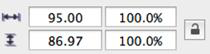
These controls are also updated as a design element is moved or re-sized using its handles.
The element is scaled proportionally if the Scale Proportionally control is locked, otherwise height and width changes are applied individually.
 Locked—Scale
Proportionally
Locked—Scale
Proportionally
 Unlocked—Scale
Height and Width Individually
Unlocked—Scale
Height and Width Individually
Notes:
1. If you have sized an element proportionately (percentage values are the same in both height and width) and want to return to its original size, simply lock the Scale Proportionally control and enter a value of 100 in either of the percentage fields. Embrilliance will remember the original size even when you reopen the design at a future date.
2. If you have sized an element disproportionately and want to return to its original size, simply unlock the Scale Proportionally control and enter a value of 100 in both of the percentage fields.
3. The lock has no effect on drag resizing.
 Mirror and Rotate