Once you have mastered the Essentials, you might be ready to
play a little bit more, explore more advanced functions, and take on a little
more challenge. If this is you, you might be an enthusiast. We named this
program after you!
• Stitch
editing
You can select stitches in your design using Lasso and similar
tools; move, delete, copy paste, split, and more. Repair gaps in stitching.
Adjust compensation, change stitch type from satins and fills, select and
correct stitch types, including cleaning up jumps, ensure tie stitches before
and after jumps.
•
Multiple hooping
Many built-in multiple position hoops pre-loaded. Split
AUTOMATICALLY using our patented feature. Use Mega Hoop, Plus Hoop, Jumbo Hoop,
Dream Hoop, etc.
• Baste
Hoop
Beyond basting a design, sometimes tricky fabrics and toppings
require an extra bit of help.
•
Precise Position
Accurate positioning of any design on the page. Use this
advanced customizing feature for perfect layouts.
• Mirror
X 4
Take corner designs and perfectly set them in all four corners
of the hoop.
•
Instant repeat
Repeat a design across and down. Make a nice effect.
•
Carousel
Create a circular composition out of your designs.
•
Scatter
Unique effect to create copies of your designs, including
lettering, for neat effects on large spaces.
•
Advanced Thread editor
Beyond the Essentials palette creator, the Enthusiast editor
lets you make your own thread brands, and pick colors right off web pages or
PDFs.
•
Advanced Stitch properties
Control satin and fill density within each color layer in any
stitch file.
• Save
Image utility menu item
Create a transparent .png file of the current design page for
use on the web, etc.
 The
ability to edit individual stitches is a very useful tool. Sometimes there are
parts of a design that you simply do not want. Other times, there are jams of
stitches that simply cannot be removed any other way. In still other cases, you
want to add a few stitches to get rid of gaps or increase coverage in an area
that’s not necessarily a fill. Maybe you just want to make a pocket topper?
The
ability to edit individual stitches is a very useful tool. Sometimes there are
parts of a design that you simply do not want. Other times, there are jams of
stitches that simply cannot be removed any other way. In still other cases, you
want to add a few stitches to get rid of gaps or increase coverage in an area
that’s not necessarily a fill. Maybe you just want to make a pocket topper?
To begin editing a design’s stitches, click the Stitch Edit
button on the toolbar. This will cause the Tool pane to display the Stitch Edit
controls, and the main view will show the stitch points.
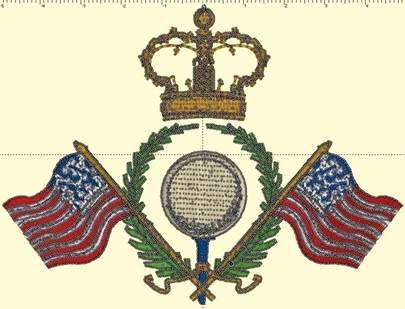
Stitch points can be turned on or off from the View menu.
They help identify the individual needle penetrations in the design.
Stitch selection is accomplished two ways:
1.) A
range of continuous stitches.
2.) A
graphical section of stitches (lasso, rectangle, brush selection).
You can select a range of stitches by clicking an ‘Anchor’
stitch, and then use the keyboard to select additional stitches. (See the
keyboard reference at the end of this section.)
Here you can see that we’ve selected a range of stitches
inside the golf ball, but we’ve skipped the satin stitches that go around the
edge. If we hit delete on the keyboard, we can remove them!
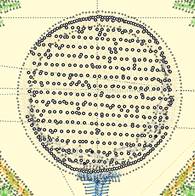
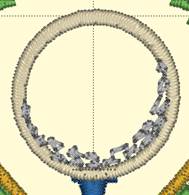
Another way to select stitches is graphically. You can drag a
rectangle or a lasso around stitches to select them. You can also use the Brush
selection, which selects anything the cursor touches, or with the Ctrl key, the
brush can de-select points. Selected stitches can be deleted with the ‘delete’
key or split using the ‘Split’ button.
Select stitches for an entire object or design using the
Object View. While in Stitch Edit mode, simply select objects in the tree and
the corresponding stitches will be selected.
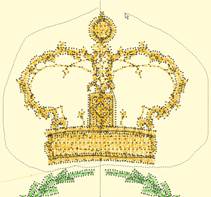
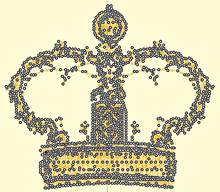
Left:
Lasso.
Right: Selected
You can also select a single stitch by clicking on the line
representing the stitch itself. Make sure no other stitches are selected first,
and then simply click on a stitch line. The stitch point at the end of that line
will select. This makes it easier to select a single stitch out of a jumble of
stitches that may exist near each other.
Right-click to bring up a context menu that will give you the
ability to switch stitch types between Jump and Normal stitching. For color stop
inserting, use the Sewing simulator.
When you convert a stitch to a Jump, you have the option of
ensuring the stitches on either side are tied off. If you choose this option and
the stitches are already tied off, then no stitches will be inserted.
If you have a stitch that appears not to be ties down, and you
will want to cut it, you can ensure ties using the context menu. Simply select
the stitch (as directed above) and then right-click for the context
menu.
 Once
stitches have been selected, you can delete them or split them. To split them,
click the ‘Split’ button. This will create a separate design for the selected
stitches. It will also remove the stitches from the current design. If your
design is lettering or a Library design, this process will convert that design
to stitches so you will not be able to adjust that design the same as
before.
Once
stitches have been selected, you can delete them or split them. To split them,
click the ‘Split’ button. This will create a separate design for the selected
stitches. It will also remove the stitches from the current design. If your
design is lettering or a Library design, this process will convert that design
to stitches so you will not be able to adjust that design the same as
before.
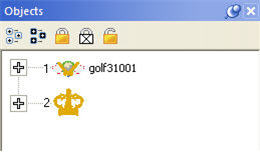
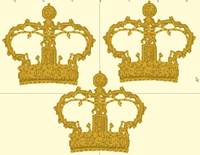
Above, the design has been split, and
the crown was copied and pasted.

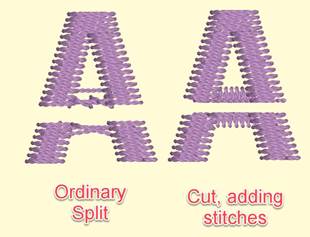
When splitting, no new stitch points are added. If
you want to use the selection shape you’ve made to actually cut the stitches,
which will insert new stitch points, use the second button to split the design.
This is useful for something like a pocket-topper where you want a clean line of
stitches instead of what might otherwise be a feathered-edge.
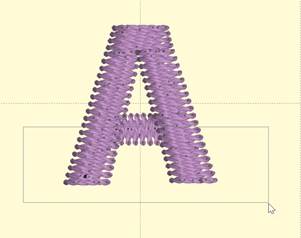
If you have a stitch selected, right-click to get a pop-up
menu that will let you insert stitches.
Notice that you can see the direction of the stitches when you
are zoomed in. This helps determine ‘before’ or ‘after’. The arrow on each
stitch points toward the next stitch as the design would sew.
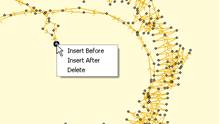
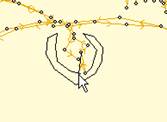
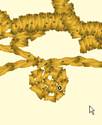
Left: Right-click to select the
Insert mode.
Middle: Inserting
stitches.
Right: Stitches have been
inserted.
Using the ‘Satin’ Drop-down box, you can convert selected
stitches to a satin stitch, a choice of split satin stitches, or even add a fill
effect to an existing satin stitch.
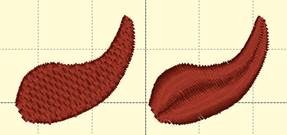
Once stitches have been selected, you can add compensation,
which makes the outside stitches of fills or satins a bit longer or shorter.
This is useful when you have gaps in a stitch-out and you would like to
‘stretch’ the stitches together, thus reducing or eliminating the gaps. You can
also use compensation to adjust the width of lettering you may have
imported.
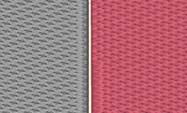
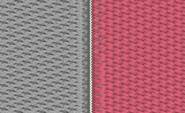
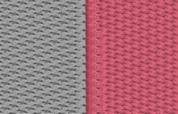
Left: a typically gapped design. Middle: The stitches around
the gap are selected. Right: Compensation has been added by moving the slider to
the right.
If you have edited a native object, such as one of the
built-in lettering designs, the object still retains its original digitizing
data. However, as you have edited the object, the ability for the program to
generate stitches on that object has been turned off. You can re-enable
generation using the to normal Select Mode, select the object, right click >
Allow Regenerate.
Stitch Editing Keyboard Shortcuts
Left
Arrow:
Select
Backwards
Right
Arrow: Select Forward
Up
Arrow: Select Forwards 10
stitches
Down
Arrow: Select Backwards 10 stitches
Page
Up: Select next
command (jump or color)
Page
Down: Select previous command
Home:
Select First stitch
End:
Select last Stitch
Delete:
Delete selected stitches
Shift
Left Arrow: Range select backwards
Shift
Right Arrow: Range select
forward
Shift
Up Arrow: Range select forwards 10 stitches
Shift
Down Arrow: Range select backwards 10
stitches
Shift
Page Up: Range select next command (jump or color)
Shift
Page Down: Range select to
previous command
Shift
Home: Range select to first
stitch
Shift
End: Range select to last
Stitch
Various features of Enthusiast are found as additions to the
Utility menu.
Precise Position
You can precisely position designs using these buttons. The
three buttons on the (top, left) control the display of the x-axis position.
There are Left, Center and Right, which means that when you have the Left button
set, the display will be of the left edge of the design.
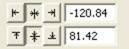
Similarly, the bottom three buttons control the vertical axis,
top, center and bottom respectively. The position controls are very useful for
creating tiled patterns.
Your best friends will be the top ruler and left ruler along
the edge of the Design Page. You will notice that center of the ruler is “0”. To
the left of “0” is -. To the right of “0” is plus. Let’s place a design on
the design page and get started with Precise Position!
1.
Decide what size embroidery hoop you are going to use and open it onto the
Design Page. You will notice that there are four quadrants inside the hoop.
2.
Open a design onto the design page.
3.
Place the design in the top left quadrant. Note the numbers in the x and y
location boxes. (-47.17 and 50.25)
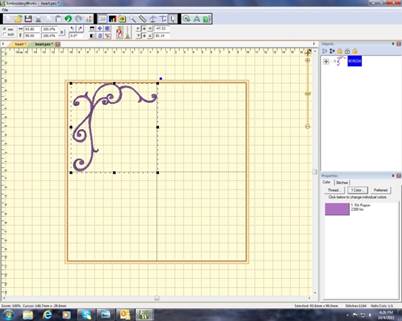
4.
Select the design and right click to copy and then right click to Paste the
design.
5.
Click on Flip Horizontally.
6.
Delete the minus (“-“) from 47.53 and hit enter. This will move the copied
design to the right top corner.
7.
Select the design and right click to copy and then right click to Paste the
design.
8.
Click on Flip Vertically.
9.
Place a minus (“-“) next to 50.14 in the y location box. (-50.14)
10. Hit
enter. The design moves to the bottom right corner.
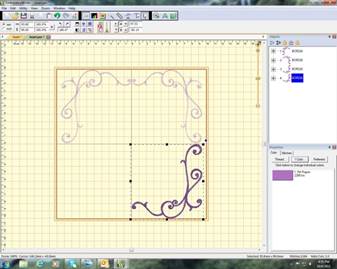
11.
Copy and paste the design in bottom right corner.
12.
Click on Flip Horizontally.
13.
Place a minus (“-“) next to 47.53 (-47. 53) in the x location box. Hit
Enter.
14.
Your frame is now complete!
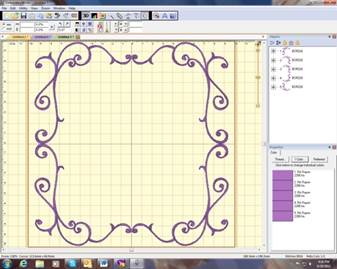
This is a great way to align your designs without the
frustration of where you placed the first design and how to get the others to
follow suit.
From the Utility menu, select “Instant Repeat.” This opens
window that lets you create a pattern of designs, copied from the current
selection, and pasted in rows and columns.
To change the values, click the arrows next to each value, or
type in a value and then click on another one to set it.
As you change the values, you will see your result on the main
view.
Click OK to accept your new designs.
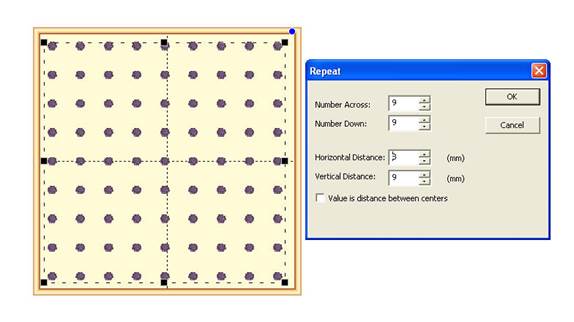
Above: An example of a repeated design.
Notice how the preview enables you to see the pattern as you
adjust it, which helps if you’re trying to fit an area, for example the
hoop.
Note: The initial design will be
the (top, left) design, and the copies will go to the right and down.
Mirror X4
From the Utility menu, select “Mirror X4.” This will call up a
window that lets you create a pattern of designs, copied from the current
selection, and pasted in mirrored corners.
To change the values, click the arrows next to each value, or
type in a value and then click on another one to set it.
As you change the values, you will see your result on the main
view.
Click OK to accept your new designs.
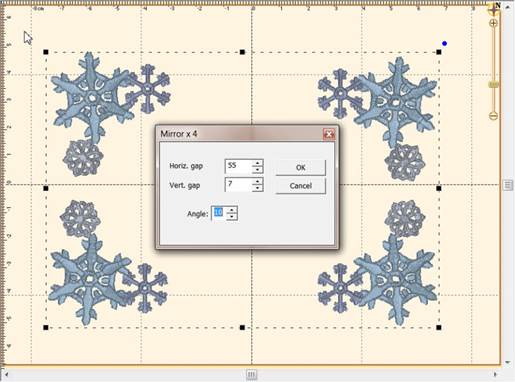
Above: An example of a Mirror X4 design.
Notice how the preview enables you to see the pattern as you
adjust it, which helps if you’re trying to fit an area, for example the
hoop.
Note: The initial design will be
the (top, left) design, and the copies will go to the right and down.
Carousel
From the Utility menu, select “Carousel.” This will call up a
window that lets you create a pattern of designs, copied from the current
selection, and pasted in an elliptical fashion
To change the values, click the arrows next to each value, or
type in a value and then click on another one to set it.
As you change the values, you will see your result on the main
view.
Click OK to accept your new designs.
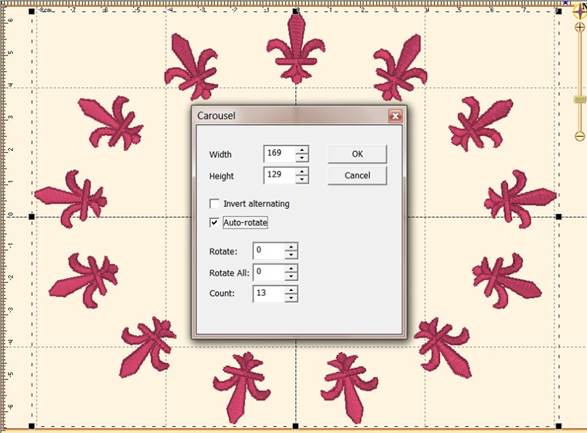
Above: An example of a Carousel
design.
Notice how the preview enables you to see the pattern as you
adjust it, which helps if you’re trying to fit an area, for example the
hoop.
Note: The initial design will be
the (top, left) design, and the copies will go to the right and
around.
Scatter
From the Utility menu, select “Scatter.” This will call up a
window that lets you create a pattern of designs, copied from the current
selection, and pasted in random locations based on your dialog box
selections.
To change the values, click the arrows next to each value, or
type in a value and then click on another one to set it.
As you change the values, you will see your result on the main
view. Click on New Pattern to generate a new random pattern based on the
selected values
Click ‘OK’ to accept your new designs.
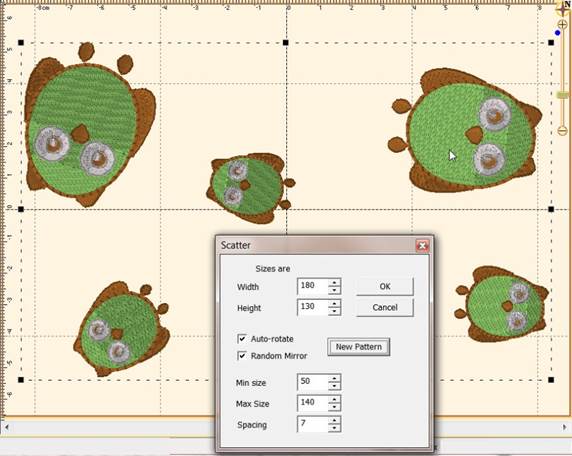
Above: An example of a Scatter design.
Notice how the preview enables you to see the pattern as you
adjust it, which helps if you’re trying to fit an area, for example the
hoop.
Note: This is a way to get a random
repeat of similar designs.
 When
sewing on terry or any fabric with loops and nap, generally a topping stabilizer
is used. These can be helpful, but have a limitation: They do not hold down the
nap past the actual stitch, which means outlines can be lost in the surrounding
fabric. Using the menu Utility->Add Knockdown Stitches you can create a
global underlay for the entire design. The underlay extends a few millimeters
past the edge of the design, which helps the overall effect.
When
sewing on terry or any fabric with loops and nap, generally a topping stabilizer
is used. These can be helpful, but have a limitation: They do not hold down the
nap past the actual stitch, which means outlines can be lost in the surrounding
fabric. Using the menu Utility->Add Knockdown Stitches you can create a
global underlay for the entire design. The underlay extends a few millimeters
past the edge of the design, which helps the overall effect.


When you add
Knockdown stitching, there are some options you can use. Generally, don’t change
the defaults.
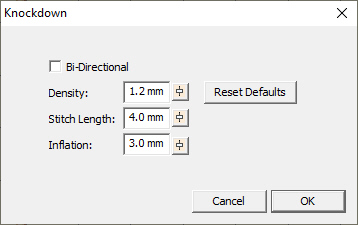
These
options are included for fabrics that react in unanticipated ways, and the only
way to know what to adjust is through the process of test-sewing.
Knockdown
normally stitches one direction, on a bias, but some users have asked for it to
stitch both ways for additional flattening. This is what the Bi-Directional box
is for. Alternately, the density can be increased to hold down in a tighter
pattern.
Stitch
length is adjustable if it helps with the nap. It is fairly universal at 4mm but
some digitizers like to have control of it for other
purposes.
Inflation
controls the size of the knockdown. For its intended purpose, the Knockdown has
to be larger than the design, but normally not a lot. Some may want to extend
the size by increasing the inflation, which makes the embossed look of it stand
out further.
With Essentials, individually selected designs can have a
basting stitch added automatically. This is useful when you want to add a layer
of stabilizer or some other material before the sewing of a design.
But with Enthusiast, a basting stitch can be added to the
hoop, which allows for a layer of topping stabilizer to be basted in place
before any designs are sewn. A typical use of this is to add a layer of
water-soluble topping to a towel, which will prevent the terry cloth loops from
coming up through the embroidery. It can be hard to hoop a towel, and the
topping stabilizer will want to slide around before the stitching happens, so
basting it first can make the process easier.
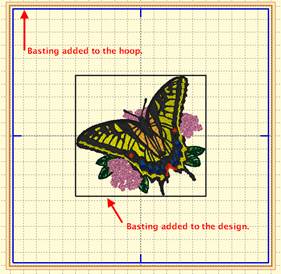
The basting stitches are added to the start of the design or
file, and are added as a separate color; naturally you can use any color you
want to sew the baste.