
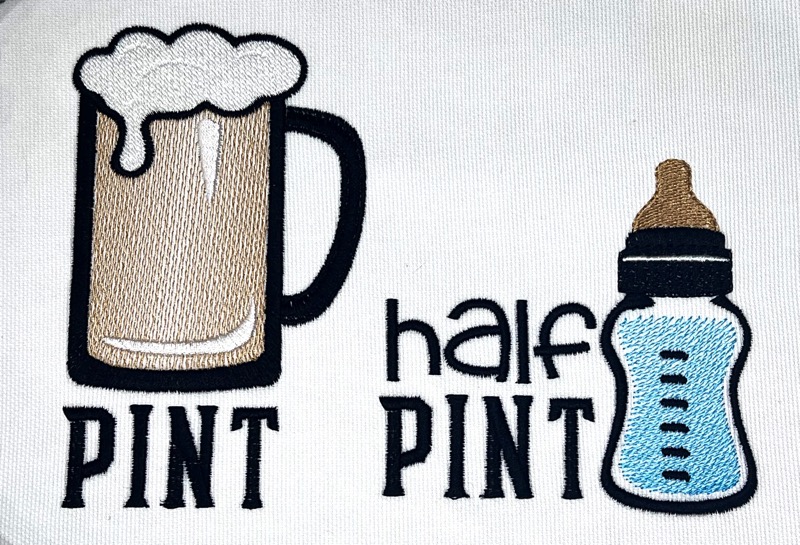
Our Lisa Shaw created this cute ‘Duo Design’ for Dad and baby, perfectly sized to stitch on a bib/singlet or a left chest for Dad’s shirt. Digitized in StitchArtist from a graphic from Sanqunetti Designs on Etsy, Lisa made this matched set of designs just in time for Father’s Day.

Carving in the Curves
She set up this sketch-filled design with subtle textures to enhance the look. The curves in the beer’s foam are a perfect example, using the carving lines feature found in StitchArtist 3. Though she could have added another color for shading, or separated the single fill of the foam into multiple objects, she decided to stay true to the original designs’ shapes and style. It’s amazing just how much visual impact even the simplest addition can create; these carving lines added just the right hint of dimension and depth without any hard work.

To add a carving line to a filled object in StitchArtist Level 3, it’s as simple as taking thiese 3 steps:
- Draw a your carving line using your preferred method (for the line below, we used ‘Draw with points’) and place the line over the fill where you want to carve into the fill stitches.
- Select both your fill object and your new carving line, right click, then select ‘Combine with Carve’
- Regenerate the filled object using the ‘Generate Now’ button – this lets you see your new carving line’s break points in the existing stitches.


“Grading” on a Curve(d Fill)
Lisa also applied a curve to the gradient fill used the baby bottle. These are both StitchArtist level 2 features. Gradients and curved fills allow you to add movement , dimension, and interest to your design without adding extra color changes or stitch objects.
Making the Grade
To make any fill a gradient, simply click the ‘Add a Gradient’ button with your fill object selected, then select the type of gradient from the drop-down menu that appears, and use the slider to set the density of the least dense area in the gradient fill. In the example below, an ‘Increasing’ gradient was added to fill with the ‘Travel Edge’ option set, and the gradient density was set to ‘3.6mm’.


Throwing a Curve
To create a curved fill, select the ‘Curved‘ option in the ‘Fill’ tab of the properties pane with your fill-stitch object selected. As soon as you choose the curved option, the inclination line will have a curved node in its center which you can move and adjust to change the curve of the stitch lines and achieve your desired look.

The Object of Customization
Lisa used another awesome StitchArtist 3 feature to make her digitizing life easier. When Lisa looked at the original graphic, the font style for the word ‘Pint’ seemed very similar to the ‘PA Cycle‘ font which is included with PatchArtist. Though she could have chosen to type it in and be done, and PA Cycle would have been “close enough”, she decided to take it an extra step by using the power of native fonts and StitchArtist 3’s ‘Convert to Objects’ feature.

Because PA Cycle is a Native font that allows for object editing in its rights, StitchArtist Level 3 users can convert the lettering into the original digitizing objects used to create the font. This means that a StitchArtist Level 3 user can alter the shapes, changing nodes to match the original design. Lisa changed many of the curved nodes to line nodes and altered their position to create a more geometric look and adjusted the shapes of the objects in the P, N and T to more closely match the original graphic.
Converting to Objects

To convert the lettering to objects, right click on the lettering object in select mode and choose Convert to Objects from the popup menu. NOTE: if you attempt this with other fonts and only see Convert to stitches, you may be using a stitch-based BX font, or a native BX font does not allow for converting to objects. All of the native fonts created by Embrilliance allow you to convert to objects, but other digitizers may choose not to allow this feature. If you are using a stitch-based BX font, you will not have the option to convert to objects as those fonts do not contain the original digitizing objects. Check out this blog post for more information on Native Fonts.

With the lettering converted to objects, you can now select the original objects, alter node or object properties, and make any changes you could make to your own digitized objects.
See (and Sew) for Yourself!
Whether you are a user of any Embrilliance program (including the free Express mode and just want to save your machine’s stitch file and sew the designs as is or someone who wants to dig down with StitchArtist and play with the objects in Lisa’s .BE working file, you can get the files at the link below.
The designs are provided in our native .BE format, enabling you to save a stitch file for any embroidery machine. If you aren’t already an Embrilliance owner, we provide a free method to use our software called Express Mode. It will not only allow you to use any of the wonderful free designs found in our project blog, but also lets you install and create basic text treatments with fonts distributed in our popular .BX format produced by many embroidery design creators.