
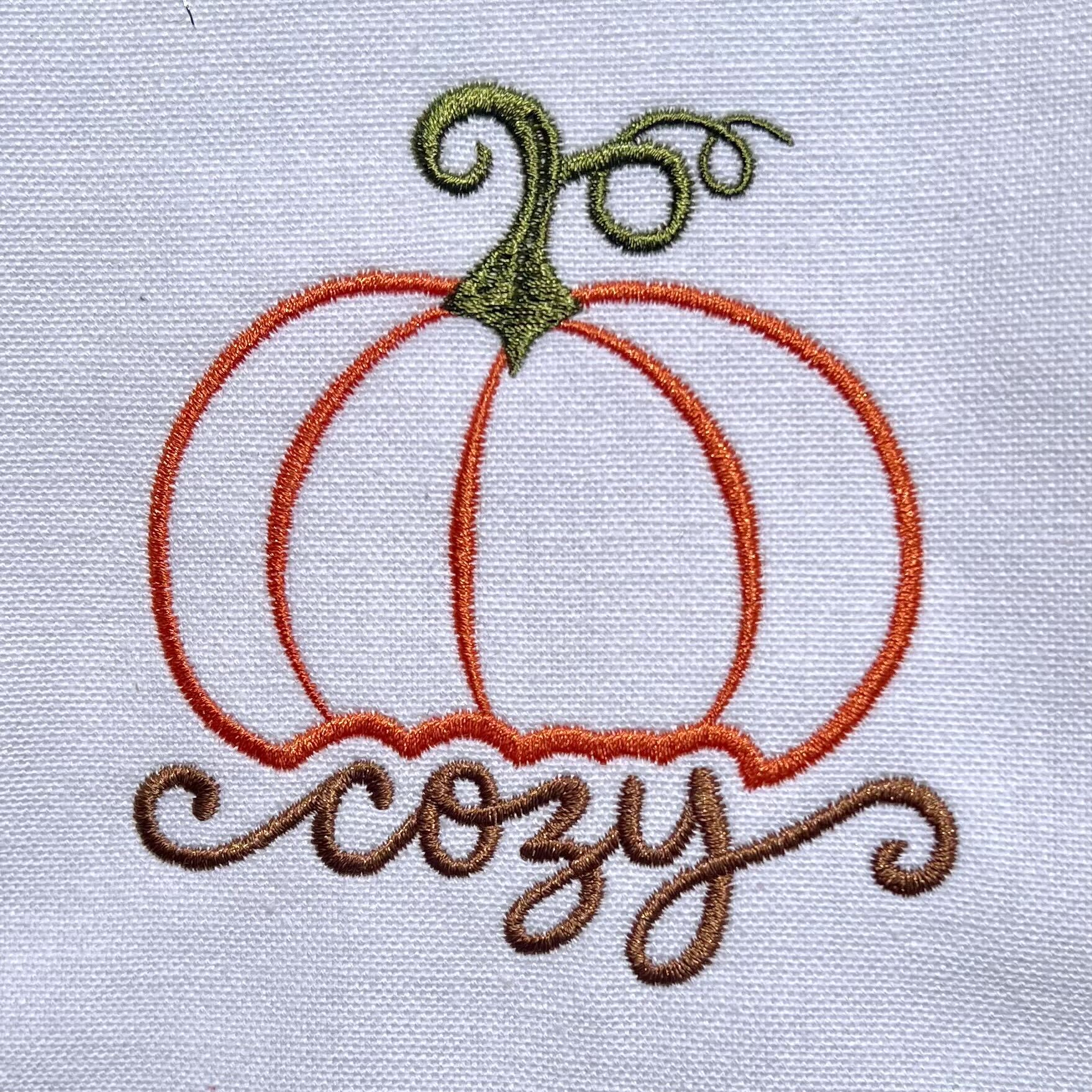
Sometimes, a simple change can give an existing embroidery design a whole new look!
Read on to see how Lisa Shaw recreated her pumpkin design into this awesome cozy knockout-styled stunner or scroll down to grab the downloadable BE file if you just want to get to stitching!

Our friend Lisa has been having some fun reworking a pumpkin design from the Embrilliance project blog. By combining the original pumpkin with some creative lettering and making a few adjustments in StitchArtist, she created this adorable “Cozy Pumpkin” design featuring the popular knocked-out style.
The best part? She didn’t have to start from scratch!
A New Look for an Existing Design
One of the wonderful things about having your BE working file when digitizing in StitchArtist is that you can always return to your original artwork and make changes whenever inspiration strikes.
Your BE file preserves editable objects and their properties, making it easy to revisit a project, experiment with different techniques, and create something entirely new!
Lisa started with this original pumpkin design from the Embrilliance project blog and gave it a fresh look with the addition of the word cozy in an lovely, decorated script typeface.
Let this cute little pumpkin be a reminder that the wonderful designs you’ve already created can be the starting point for your next creative project!
There’s More to Satin Borders Than You Might Think!
One of the fun details in this pumpkin is the variation in the width of the satin stitching that defines each of the curved pumpkin sections, believe it or not, this didn’t take a ton of drawing to achieve! Each of these sections is a single, center line set to Satin Border.
Did you know that StitchArtist Level 1 includes some powerful options for customizing satin borders?
By default, a satin border maintains an even width from beginning to end. That’s useful for many projects, but what if you want something a little more interesting?
In the Satin Border properties, look for the small button that resembles an eyebrow. This opens the Adjust Line & Nib Styles options.

Click the button and the fun begins!
Explore Eight Different Line Styles
Once you click that button, you’ll see a menu showing the eight line styles available, including the standard, even-width border. The other styles allow you to vary the width along the length of your satin border.

You can create stitching that gradually becomes wider or narrower, tapers at both ends, or changes width along the line.
These options are especially useful for creating decorative accents, curved details, and interesting dimension in your embroidery designs. This isn’t for just a small, simple curve, either. Any open shape with the Satin Border stitch type selected can make use of these options!

What About the Nibs?
The nibs are the ending points at either end of an open shape.
With the nib settings, you can change the appearance of those ends, choosing a rounded or pointed finish to complement your design.
Think about the possibilities for vines, decorative flourishes, doll faces (smiles & eyelashes), and so much more!
Small Changes, Big Creative Possibilities
It’s easy to overlook some of the options tucked away in the StitchArtist properties. But exploring these settings can introduce you to techniques you might not have considered before.
You don’t always need to create a complicated design to achieve an interesting result. Sometimes, changing a single setting is all it takes to transform a simple element into something special.
And yes, these satin border options are available in StitchArtist Level 1!
The next time you’re working with an open shape and a satin border, take a few minutes to explore the line and nib styles. Try the different options, watch how they change the stitching, and see what works best for your project. You might just discover a new favorite tool!
Download the FREE Cozy Pumpkin zipped BE file below, whether you are a user of any Embrilliance Platform program and simply want to save to your machine’s stitch file format and get the needles moving, or you are a StitchArtist user looking to take the native elements and make your own edits, we’ve got you covered with the native BE file!
This design is provided in our native .BE format, enabling you to save a stitch file for any embroidery machine. If you aren’t already an Embrilliance owner, we provide a free method to use our software called Express Mode that will not only allow you to use any of the wonderful free designs found in our project blog, but also enables you to install and create basic text treatments with fonts distributed in our popular .BX format produced by many embroidery design creators.
To learn more about Embrilliance Express and for the instructions and links you need to download, install, and use our software with our free project files, please click here.