
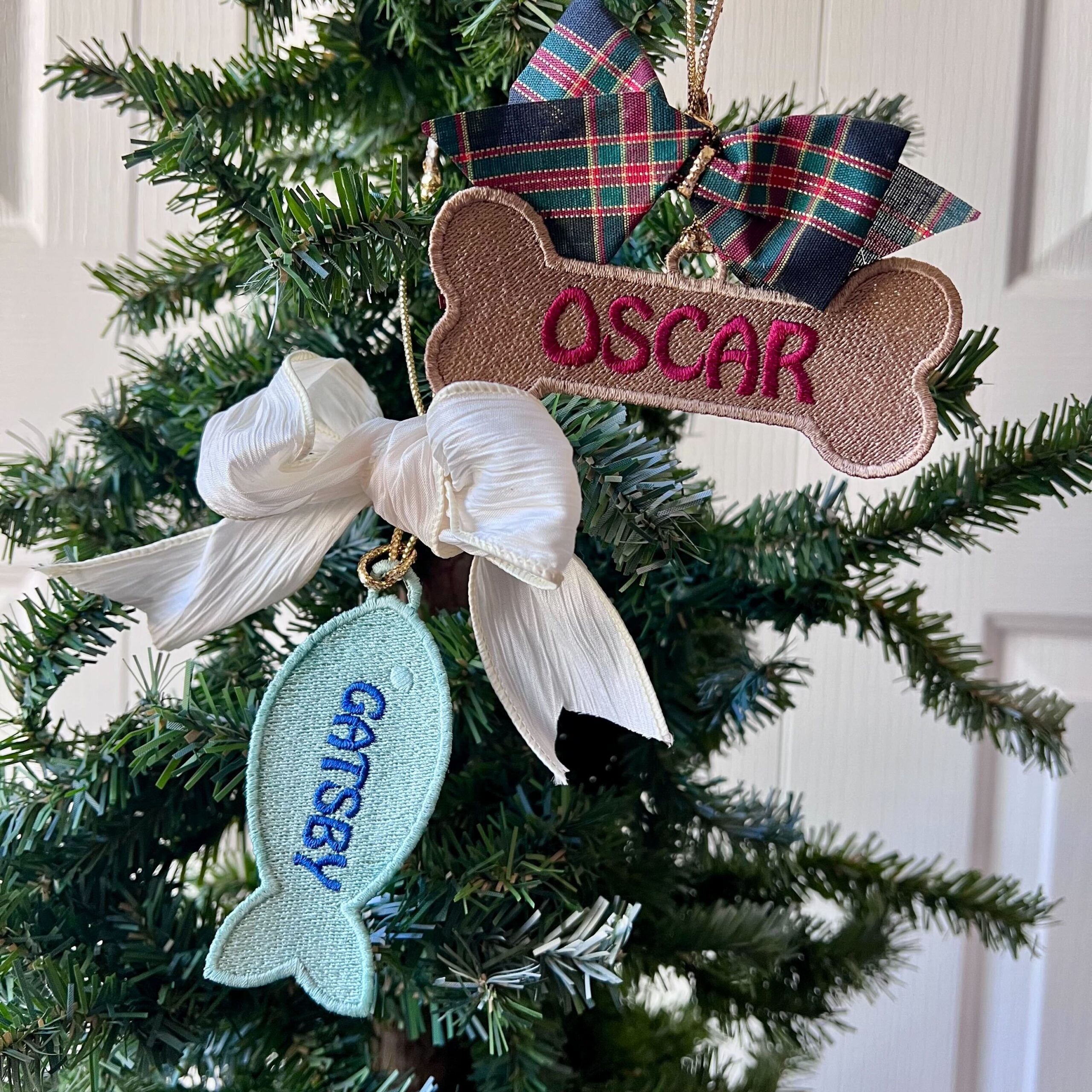
We never want to leave out our furry family members when we’re decorating for the holidays! To make sure that your fuzzy friends have a place on the pine, we created some freestanding ornaments ready to customize with your precious pets’ names! Read on below for information about running multiple pieces in one hoop and to download our Bones and Fish freestanding ornament for a treat-based treasure you can place on your tree whether you have dogs, cats, or both!


Each of these designs have Lettering objects that you can customize using your own names and fonts!
Digging up Duplicates for Multiple Design Stitching
We placed the Dog Bone design at a 45º angle to make sure those with 4X4 hoops could get the benefit of its full size. Even if you have a larger hoop, many choose to use small hoops so as not to waste stabilizer when stitching just one. That said, those of you who want to stitch multiples of a design in a large hoop should first rotate the entire design back to 0º before making your multi-design layout.
The Copy/Paste Method
To create multiple copies of a design in a larger hoop, Copying the design, then Pasting and positioning a new copy into the design area is a tried and true, albeit somewhat slow, way to get the job done.
Selecting the Stitches
There are various valid ways to select all the stitches in a design. Any of these will select all the stitches in the design, allowing you to copy the design for later use if you choose to duplicate it via the copy and paste method.
- Go to the Menu and click Edit > Select All
- Press CTRL+A or Command+A on the keyboard to ‘Select All’
- Left click, hold, and drag your mouse in the design page to create a rectangular selection that encompasses all the stitches in the design.
- Click the Select All button at the top of the Object pane at the upper right of the Embrilliance window.

Once your design is selected, you can choose multiple methods to copy the design to your clipboard.
- Go to the Menu and click Edit > Copy
- Press CTRL+C or Command+C on the keyboard to ‘Copy’
- Right Click in the design area and select ‘Copy’
- Click the Copy button in the toolbar

With your design in the clipboard, you can paste a new copy into the design area in number of ways.
- Go to the Menu and click Edit > Paste
- Press CTRL+V or Command+V on the keyboard to ‘Paste’
- Right Click in the design area and select ‘Paste’
- Click the Paste button in the toolbar

With the second copy of the design in the window and selected, you simply need to move it into place by either clicking and dragging the copy, or using the arrow keys to ‘nudge’ it into a clear location where it can safely fit and stitch inside your chosen hoop area. Keep pasting and moving until you have all desired copies in place.
Instant Repeats
Though the copy and paste method works well when you must, those that have Embrilliance Enthusiast should try out the Instant Repeat function! This tool creates evenly spaced identical multiples in your hoop which can easily be customized once they are placed.
Once your design is selected, click ‘Utility’ -> Instant Repeat to bring up the ‘Repeat’ dialog as shown below. Once you choose how many across and down you want to place, as well as set the distance between designs and ‘stagger’ which offset each row or column, you can choose whether or not to mirror or flip alternates, and click ‘OK’ when your set looks the way you like. After they are created, Select All again and move them to the proper place in the hoop.

Customization
Once they are moved to their final position in the hoop, you can select and change the lettering objects individually if you are customizing pieces that have embedded lettering like our freestanding pet ornaments. The sampled ornaments use the Hobo font from Font Collection 2, if you have that collection, you can keep the same look as the samples Lisa created, but if not, you can select any of your own BX fonts or use our Block font as pictured above!
To Sort or Not to Sort
For the sake of efficiency, you may want to run all elements of each color at once so as to limit color changes, particularly if you run a single needle machine. If you have Essentials, you can automatically and intelligently sort the colors on any design in such a way that you never accidentally run things out of order in the stack. There are different thoughts on color sorting designs like patches or free standing lace which run on soluble materials or films. This is due to the fact that some soluble materials or films have a tendency to tear away once the outside edge of a design is stitched and or weaken and allow excessive shifting in the design. Due to the worry about this weakness, some embroiderers never color sort these kinds of designs, fearing that they may lose their item when the stabilizer fails or shifts, causing layers to lose registration.
Some embroiderers color sort every design, often using additional or specific materials that avoid these difficulties. In truth, these results depend largely on how the designs are constructed, how many you run in one hooping, and the ability of your materials to hold up to considerable stitch counts. For most, simply avoiding easily torn soluble films and/or doubling layers of soluble material is enough insurance to let them sort designs without repeating colors. For many, two layers of securely-hooped, fibrous water soluble stabilizer is like insurance. It’s the go-to choice to keep lace solidly stable during embroidery.

If you want to try color sorting and own Essentials, you’ll find the color sort option under Utility -> Color Sort. Make sure to click New View in the color sort window on the upper right so that when you save your color sorted stitch file, You can keep your original working file as it was before the sort.
The design is provided in our native .BE format, enabling you to save a stitch file for any embroidery machine. If you aren’t already an Embrilliance owner, we provide a free method to use our software called Express Mode. It will not only allow you to use any of the wonderful free designs found in our project blog, but also lets you install and create basic text treatments with fonts distributed in our popular .BX format produced by many embroidery design creators.